
Connected teams
Construction progress reports: build updates from live site records
Build a construction progress update with drawings, pinned photos, work orders and corrective actions, then choose live presenting, a PDF or a shared link.
By Reldro · · 5 min read
What should a construction progress report show?
A construction progress report explains what changed during a defined period, what remains open and which decisions or follow-up are needed. It should identify the project, reporting period and source records so readers can separate verified progress from a forecast or opinion.
A presentation can communicate that report during a meeting, walkthrough or client review. It does not replace a contract's reporting format, payment assessment or acceptance process. This guide focuses on turning existing site information into a clear visual update, not calculating certified progress.
Choose the audience and decision first
A field briefing may need exact locations and next assignments. A client review may need reviewed progress, outstanding questions and an agreed next step. A safety meeting needs the relevant concerns and follow-up without unnecessary personal detail. Decide who will see the update before selecting records.
Write the reporting period and what the audience should decide. Avoid combining several projects without identifying each item. If a figure represents planned work rather than completed work, label it that way. A good-looking slide should not blur the distinction.
Build a short sequence from the source records
Use an opening overview, a location view, the important open records and a closing decision list. Those are organizing choices, not mandatory slide counts. A short update is useful when it contains enough context for the audience to act.
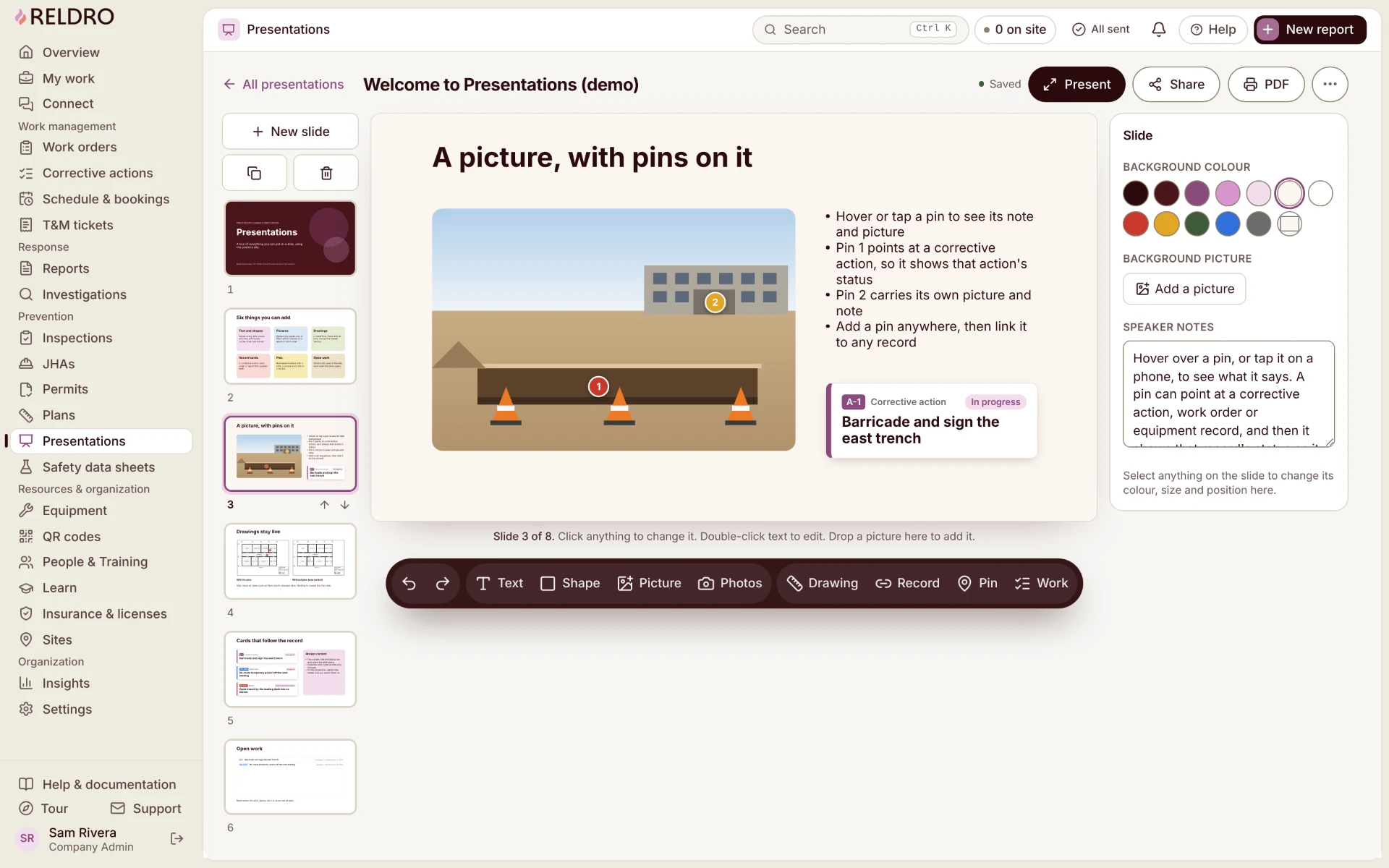
Reldro Presentations brings drawings, photos, site records and updates together. You can pin locations on drawings or pictures and include live cards for reports, corrective actions and work orders. These show the connected records rather than requiring you to rewrite each status by hand.
- Identify the site, reporting period, presenter and intended audience.
- Show the relevant drawing or photo with its location and context.
- Include open records that affect the next decision, with a named owner.
- Distinguish observed progress, planned work and unresolved questions.
- Close with the decisions requested and where their outcomes will be recorded.
Use pins to explain where the update applies
A close-up photo may show an item clearly while hiding where it is. Pair the picture with an area description or drawing reference. Pins help connect the discussion to a location, but the presenter still needs to explain what the pin means.
Check the drawing revision and the relevance of the photo before the meeting. Do not present an old image as today's condition or assume the newest file is an approved instruction. A pin shows a location; it does not verify concealed work or technical performance.
An example for a weekly contractor review
Illustrative example: a plumbing contractor prepares a weekly fit-out update. The first view names the reporting period and areas visited. A pinned floor plan shows where finishing work remains. A work order card identifies the next assignment, and a report card provides the context for an unresolved access question.
The presenter asks the project lead to confirm access for the return visit and records who will obtain that answer. They do not label the area accepted just because a task is marked complete. Completion, review and contractual acceptance remain separate decisions.
After the meeting, the responsible people update the connected records. The presentation communicates those records; it should not become a second competing list with a different owner or due date.
Understand live views and exported snapshots
Live record cards help your presentation follow changes in Reldro. Before presenting, open the records you intend to discuss and check whether the current status still supports the meeting's message. If the deck describes a historical period, explain where a current card has changed since that period.
Presentations can be shown full screen, exported to PDF or shared as a link. A PDF is a snapshot at export, not a live record. Label its reporting period and export context, then re-export if the recipient needs the revised information. Do not promise that a downloaded file updates itself.
Review the update before sharing it
Check recipients, personal information, photo context and any commercial details against your company's sharing process. Test the shared view with the intended audience and confirm access before the meeting; do not assume a link bypasses access controls.
Use direct questions for the final review: can a recipient identify the site, locate each item, find its owner and understand what is still undecided? If not, improve the source description rather than adding more decorative slides.
Keep daily records separate from the meeting update
Daily reports capture the day's observations. A progress presentation selects relevant records for a particular audience and decision. Keep those original observations available instead of treating the slide text as a substitute for the reporting history.
Start with one upcoming review and a handful of real records. Build the update, have a colleague check the locations and open actions, and try the full-screen and PDF views. That reveals gaps in the underlying records before the meeting.
The takeaway
Use presentations to communicate reviewed site records, locations and decisions. Keep live status distinct from historical progress, and treat a PDF as a dated snapshot rather than an updating record.
Sources and further reading
References for this article, published November 11, 2026. Product scope and requirements can change. Confirm details with the provider and your safety team. Guidance from a specific jurisdiction may not apply to your construction project.